
Reconciling your accounts so that YNAB matches your bank/credit card balances is mandatory if you want to trust your spending plan.
Unfortunately, many of my clients seem to have difficulty reconciling their accounts. What tends to happen is that the account won’t reconcile and if the clients they tend to either walk away (assuming they’ll figure it out later) or do a reconciliation adjustment that throws off their spending plan.
Here’s a sad fact: The longer you wait to reconcile, the harder it gets. That’s because there are more transactions to go through.
When you reconcile your account, you’re saying at this moment in time, the YNAB balance matched the bank balance. YNAB then puts a padlock in the far right column of each of the transactions up until that point. If you’ve reconciled correctly you can trust any transaction that has a padlock.
So if you’re struggling to reconcile you need only look at the transactions that don’t have a padlock.
The key to making reconciling easy is to reconcile each time you’re in YNAB. Today, for example, I had just three new transactions in my bank account. After I categorized them, I clicked Reconcile and the YNAB balance matched the bank balance. I would expect that to be the case, since there just three transactions and I had reconciled yesterday. It’s really that simple.
Here’s how to reconcile your account. (I’m taking the images and text from a blog post I wrote a couple of years ago.)
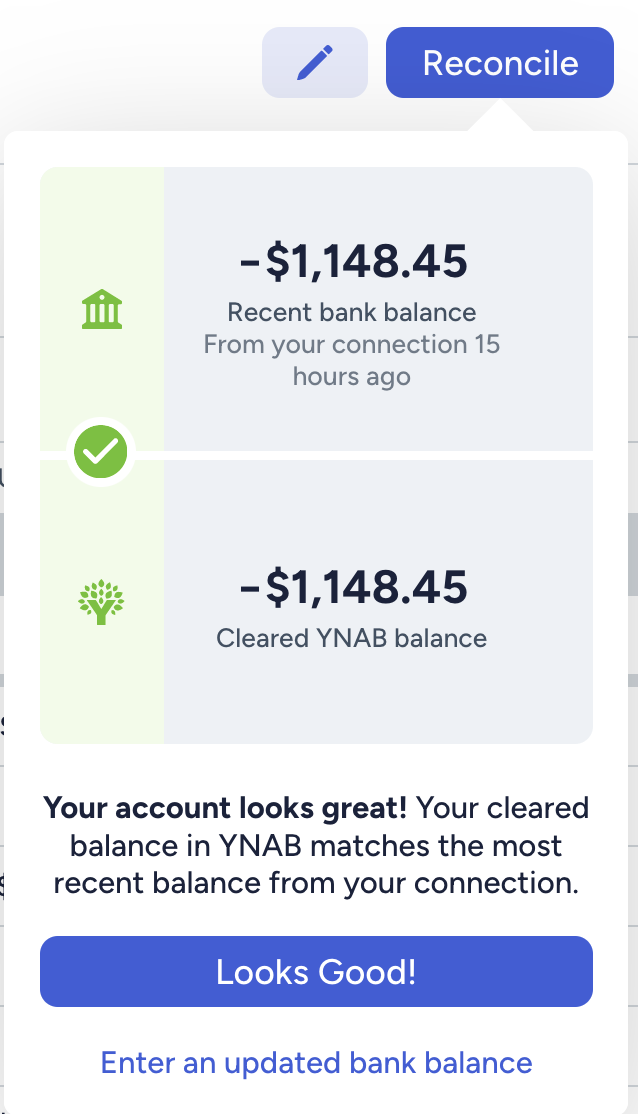
The easiest way to reconcile happens when your bank and YNAB are playing nicely together. You click the blue Reconcile button and get a pop up that looks like this. (This example, and all that follow, are screenshots from the desktop, not mobile app.)

All you have to do is click “Looks Good!” and you’re done. (You can read my blog post called Reconcile Often to see a little video of that, which includes confetti.)
You might have uncleared transactions in YNAB that have cleared at your bank. In that case, your popup will look this:

In that case, you just click Return to Transactions and clear the uncleared transactions by clicking the little grey C in the far right column. (Alternatively, you can click on the transaction and click Clear in the floating box at the bottom of the screen.) Then click Reconcile again and the accounts should match and you can click Looks Good!
But sometimes YNAB and your account aren’t playing nicely and you get a pop-up that looks like this when you click Reconcile:

When you see this, you need to check your account balance at your financial institution. If it matches your YNAB balance, you’re golden. Just click Yes and the magic padlocks appear.
If the balances don’t match, click No. (Note: DO NOT CLICK YES IF THEY DON’T MATCH. If you do, you get padlocks that shouldn’t be padlocks, which will make future reconciliations even more difficult.)
After you click No and enter the bank’s balance, click Next. Then you can choose to create a balance adjustment and finish or use the Reconcile Assistant, which will look for uncleared transactions that add up to the amount you’re off.
A balance adjustment will add or subtract the amount of the discrepancy in your account and either add or subtract that amount from your Ready to Assign. Personally, I don’t like to do a balance adjustment and won’t even consider it unless the amount is under $10. Otherwise, I keep looking for the discrepancy.
If all this sounds like a pain in the butt, it can be. But it’s worth the effort. And again, the more frequently you correctly reconcile, the easier it is to find the discrepancy if there is one.
Being able to trust your spending plan is a critical component of using YNAB successfully. And reconciling accurately and often is key part of that.
Leave a Reply